HanPlanet CLI
An AI-powered coding assistant that runs in your terminal.
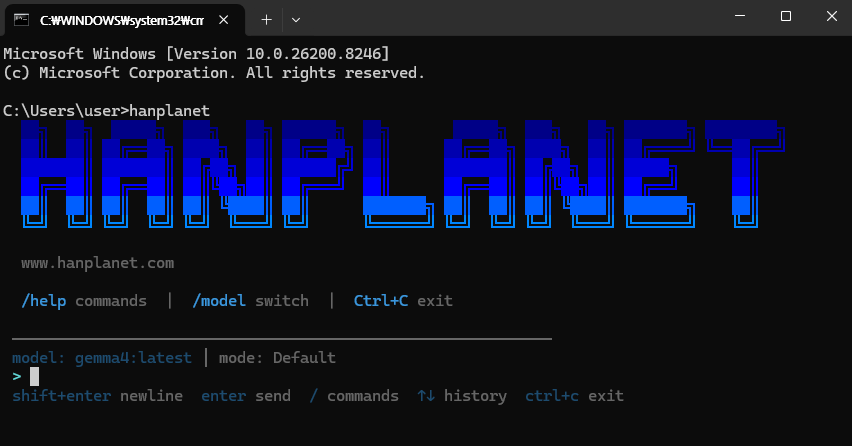
About HanPlanet CLI
HanPlanet CLI is an AI-powered coding assistant that runs in your terminal. It integrates with the Hanplanet service and supports Claude, Ollama, and other AI backends. Use natural language to write code, edit files, run shell commands, search the web, and manage Git — all guided by the AI.
To use HanPlanet CLI, you need account access granted by an administrator.
- 44+ built-in tools: file editing, shell execution, web search, Git, MCP, background tasks, and more
- Multi-provider: Hanplanet (Ollama), Claude (Anthropic), OpenAI, OpenRouter, GitHub Copilot, and any OpenAI-compatible API
- Interactive TUI with conversation history, skills, memory, and agent coordination
ohmo— a separate personal-agent CLI for long-running autonomous tasks
Installation
Standalone builds are available for macOS Apple Silicon and Windows (x64). No Python or Node.js installation needed.
macOS (Apple Silicon)
-
Click Download for macOS above and save
HanPlanet-CLI-macos-arm64.zip. -
Open Terminal and unzip the archive:
unzip ~/Downloads/HanPlanet-CLI-macos-arm64.zip -d ~/Downloads/ -
Move the entire app folder to
/opt. Do not move only the executable;_internalmust stay next to it:sudo rm -rf /opt/HanPlanet-CLI sudo mkdir -p /opt sudo mv ~/Downloads/dist/HanPlanet-CLI /opt/HanPlanet-CLI -
Grant execute permission:
chmod +x /opt/HanPlanet-CLI/hanplanet /opt/HanPlanet-CLI/ohmo -
Create symlinks on your PATH:
sudo ln -sf /opt/HanPlanet-CLI/hanplanet /usr/local/bin/hanplanet sudo ln -sf /opt/HanPlanet-CLI/ohmo /usr/local/bin/ohmo -
Verify the installation:
hanplanet --version hanplanet ohmo --help - macOS Gatekeeper: On first launch, macOS may block the binary. Go to System Settings → Privacy & Security and click "Allow Anyway", then run again.
Windows (x64)
-
Click Download for Windows above and save
HanPlanet-CLI-windows-x64.zip. - Right-click the zip file and select Extract All, or use 7-Zip.
-
Open PowerShell in the extracted folder (where
hanplanet.exeis located) and add the folder to your PATH:$p=$PWD.Path; if(([Environment]::GetEnvironmentVariable("Path","User")) -notlike "*$p*"){[Environment]::SetEnvironmentVariable("Path",([Environment]::GetEnvironmentVariable("Path","User"))+";"+$p,"User")}If you are updating an existing installation, use this command to remove the old entry and register the new path:
$n=$PWD.Path; [Environment]::SetEnvironmentVariable("Path",((([Environment]::GetEnvironmentVariable("Path","User")-split";")|Where-Object{$_ -notlike "*HanPlanet-CLI*"-and$_})+$n)-join";","User")⚠️ PowerShell only — does not work in Command Prompt (cmd).
-
Open PowerShell or Command Prompt in your desired project folder and run:
hanplanet -
Keep
hanplanet.exe,ohmo.exe, and_internalin the sameHanPlanet-CLIfolder. Do not move only the executable. - Windows SmartScreen: On first launch, Windows may show a security warning. Click "More info" → "Run anyway".
Usage
Initial setup
Run hanplanet setup to choose a provider and authenticate. Select Hanplanet to use the built-in Hanplanet Ollama backend.
hanplanet setupStarting a session
hanplanet               # Launch interactive TUI
hanplanet -c            # Continue the most recent session
hanplanet -p "Prompt"   # Non-interactive: run a prompt and exit
Authentication commands
hanplanet auth loginAuthenticate with a providerhanplanet auth statusShow current auth sourceshanplanet auth logoutClear stored credentialshanplanet auth switchSwitch active provider profileProvider management
hanplanet provider listList configured provider profileshanplanet provider use <name>Switch to a profilehanplanet provider add <name>Add a new provider profileSlash commands (inside the TUI)
Type /help to see all available commands. Common ones:
/modelView or change the active model/providerView or switch provider profiles/configView or edit settings/clearClear conversation history/costShow token usage and cost/diffShow git diff/commitCreate a git commit/memoryInspect or manage project memory/skillsList available skills/updatePull latest updates and reinstallohmo — Personal agent
ohmo is a separate agent that runs autonomously on long-horizon tasks using a persistent workspace (~/.ohmo).
ohmo init              # Initialize ~/.ohmo workspace
ohmo repl              # Start interactive personal-agent session
ohmo print "Prompt"    # Non-interactive execution